Resetting Your Password
Route: /reset-password
Accessible from the Login page via the Forgot Password? link. The flow uses a three-step process: enter email, enter OTP and new password, confirmation.
Language
An EN / TR language toggle is available in the top-right corner of the modal on all steps.
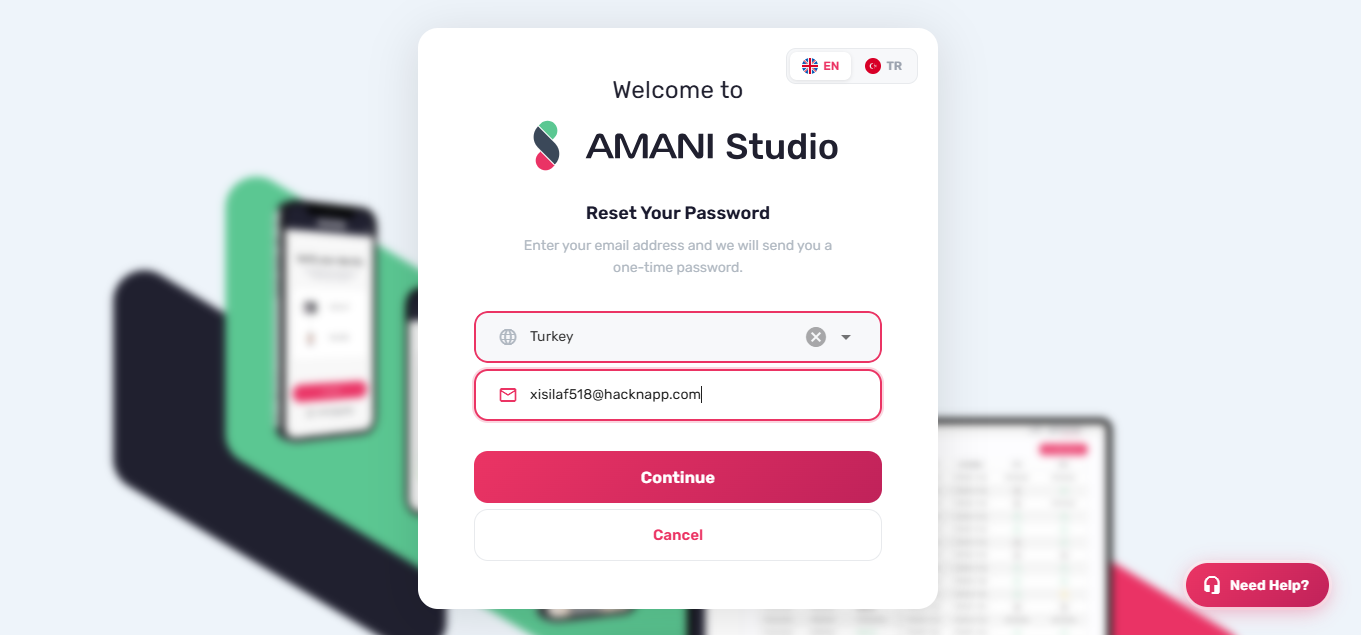
Step 1 — Enter Region and Email
- Select your Region from the dropdown.
- Enter your email address.
- Click Continue to send an OTP to that address.
The Continue button is disabled until a region is selected and the email contains @ and ..
To cancel and return to the login page, click Cancel.
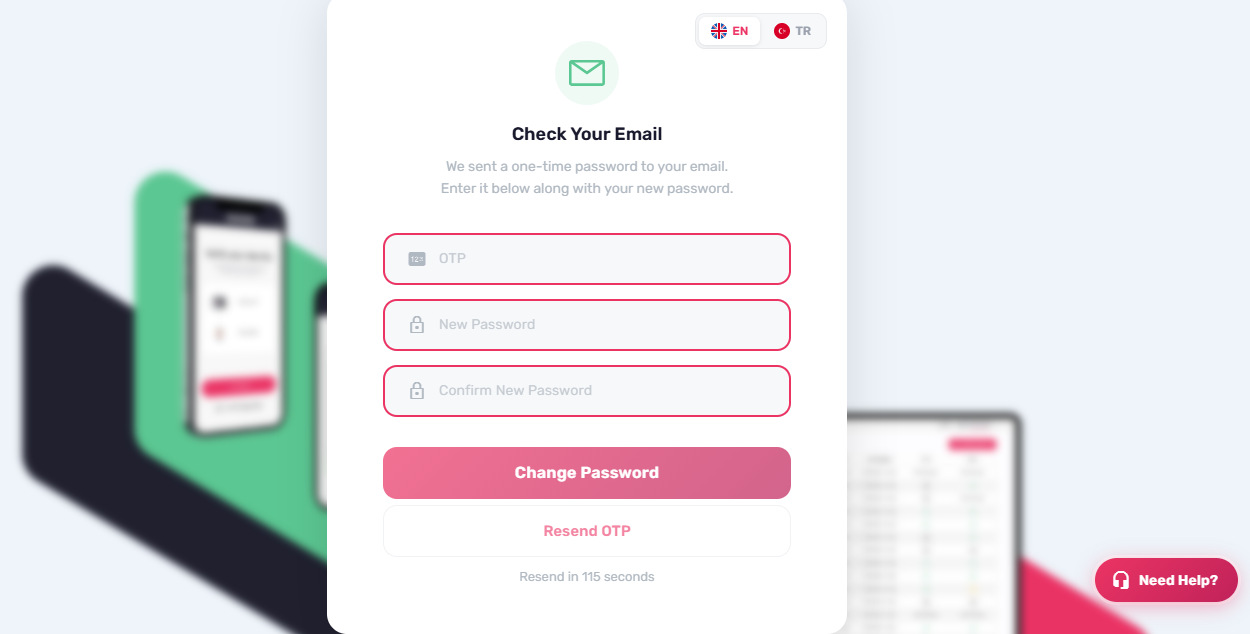
Step 2 — Enter OTP and Set a New Password
- Enter the OTP sent to your email.
- Enter a New Password.
- Enter the same value in Confirm New Password.
- Click Change Password.
The Change Password button is disabled until the OTP field is non-empty and both password fields are non-empty and identical.
Resend OTP
A countdown timer starts immediately after the OTP is sent (120 seconds). The Resend OTP button is disabled while the countdown is active. Once the timer reaches zero, click Resend OTP to request a new code. The timer resets to 120 seconds on each resend.
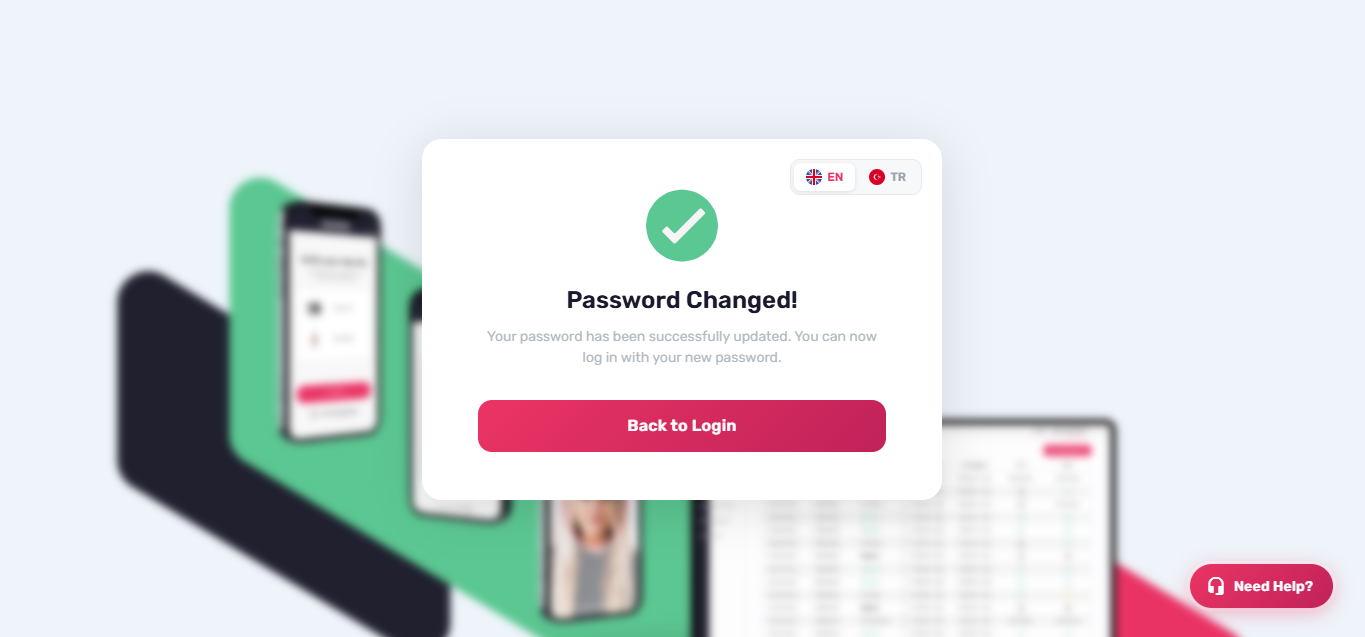
Step 3 — Confirmation
After a successful password change, a confirmation screen is shown. Click Back to Login to return to /login.
Need Help
A Need Help button is fixed at the bottom-right of the page on all steps. Clicking it opens a contact form modal where you can submit your email address and a message (minimum 15 characters) to reach support. The Send Message button is disabled until both fields pass validation.