Travel Rule
The Travel Rule module helps you comply with financial regulations that require information about the sender and recipient to travel alongside cryptocurrency transactions. It covers transactions between Virtual Asset Service Providers (VASPs — companies that handle crypto on behalf of customers, such as exchanges or custodians).
Route: /travel-rule/:tab
The module is organized into three tabs: Transactions, My Wallets, and Claims. Selecting a tab updates the URL to /travel-rule/transactions, /travel-rule/wallets, or /travel-rule/claims. The default tab is Transactions.
Transactions
The Transactions tab lists all Travel Rule transactions. Use it to view, create, update, and manage transaction statuses.
Filter and Search
- Use Search to filter the list by keyword.
- Use Date From and Date To to filter by date range.
- Use Status and Direction to narrow results further.
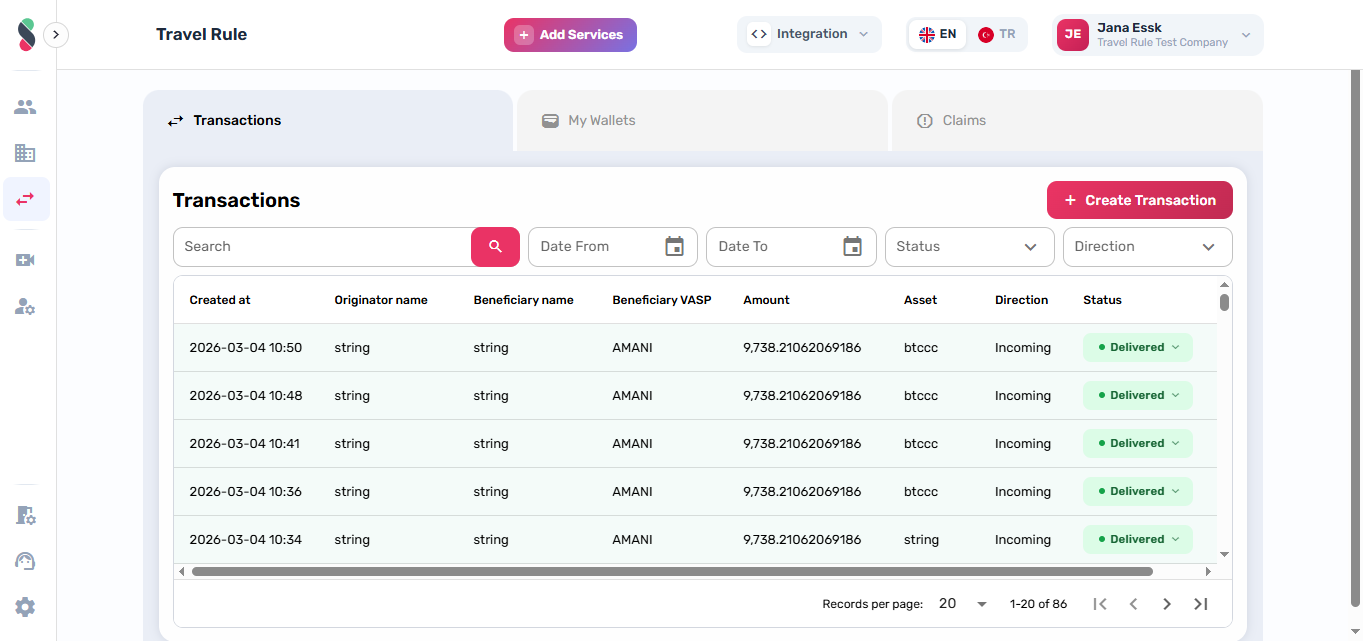
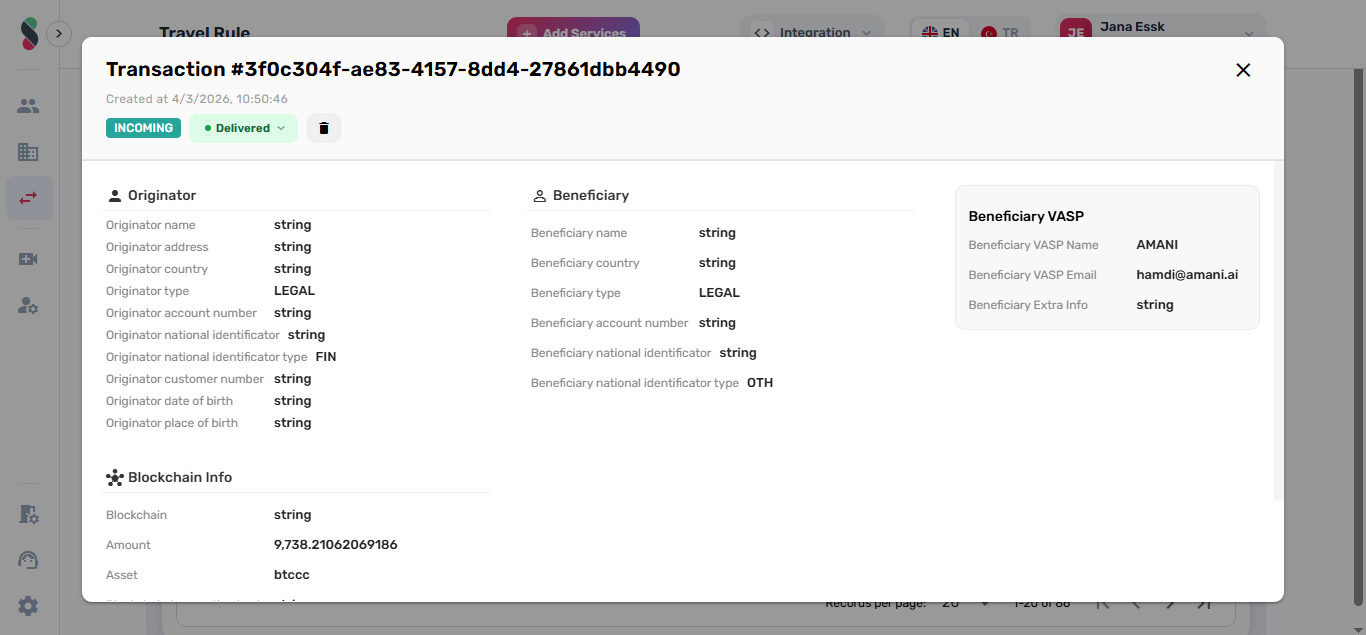
View Transaction Details
- Click a row in the transaction table.
- Review the detail drawer — fields include originator/beneficiary info, blockchain info, VASP info, status reasoning, and other metadata.
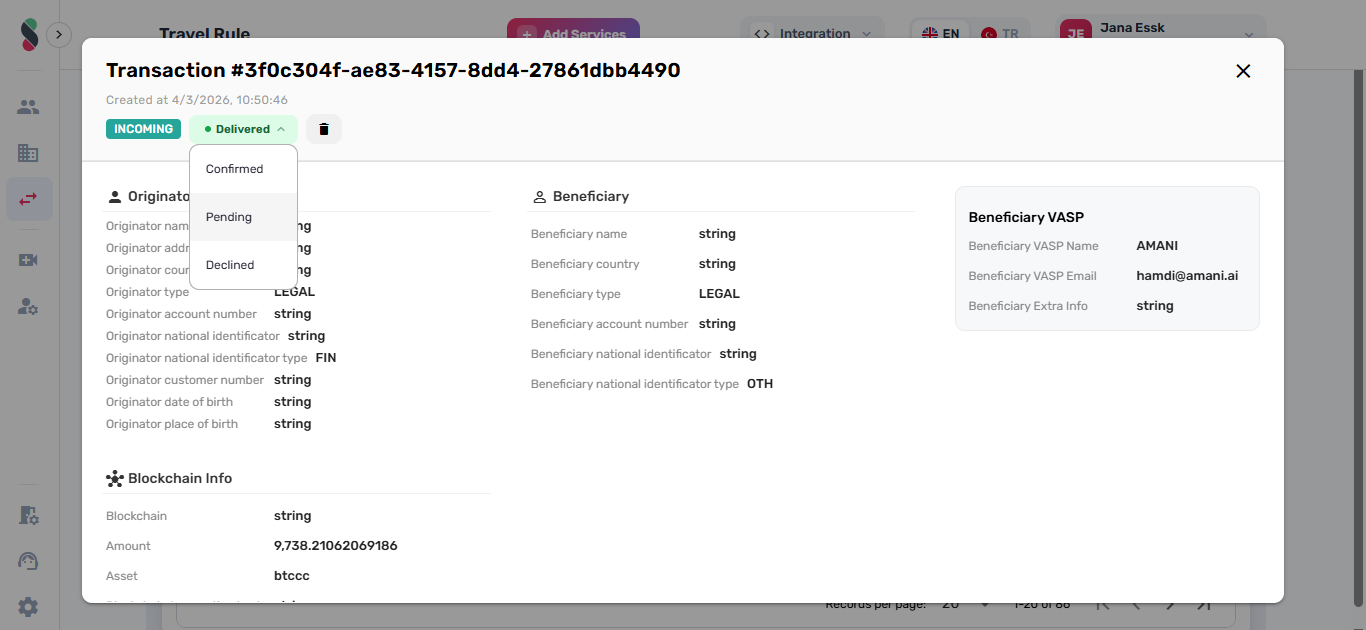
Change Transaction Status
- Use the status capsule dropdown in the list or in the detail drawer.
- Select the new status.
- If the new status is Declined or Failed, a reason prompt appears.
Create, Edit, or Delete a Transaction
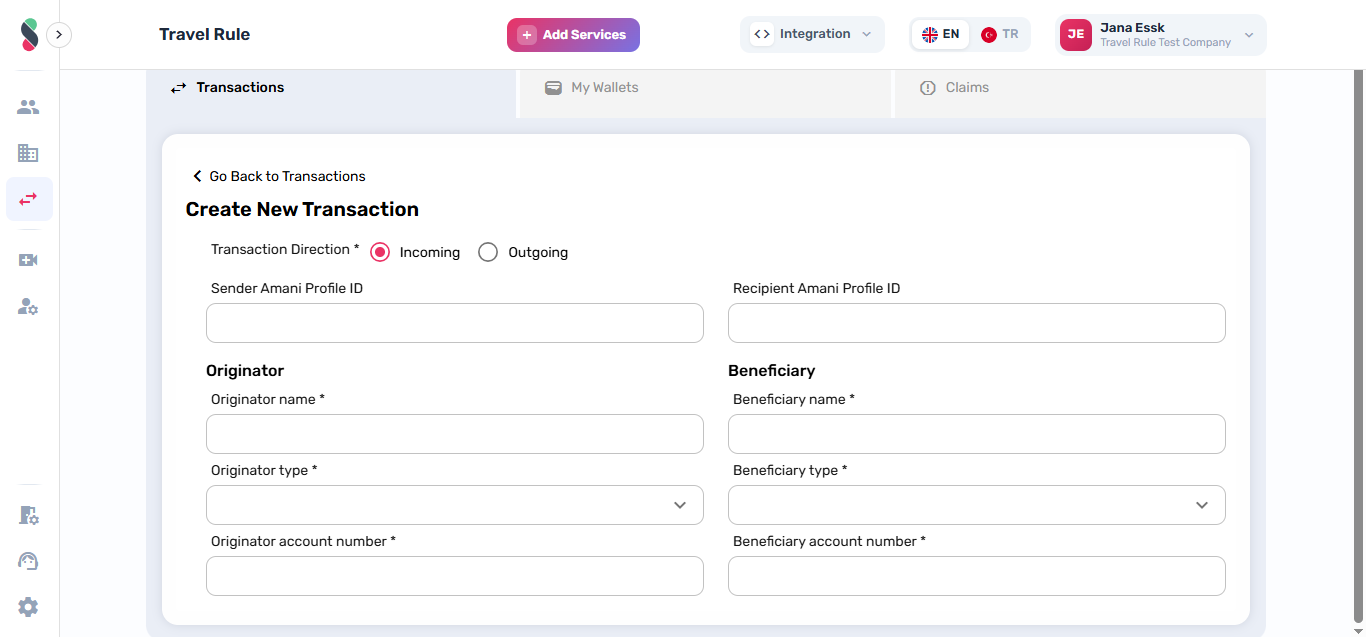
- Click Create Transaction to open the transaction form.
- In the transaction detail drawer, use Edit or Delete (availability depends on your permissions and the transaction direction).
My Wallets
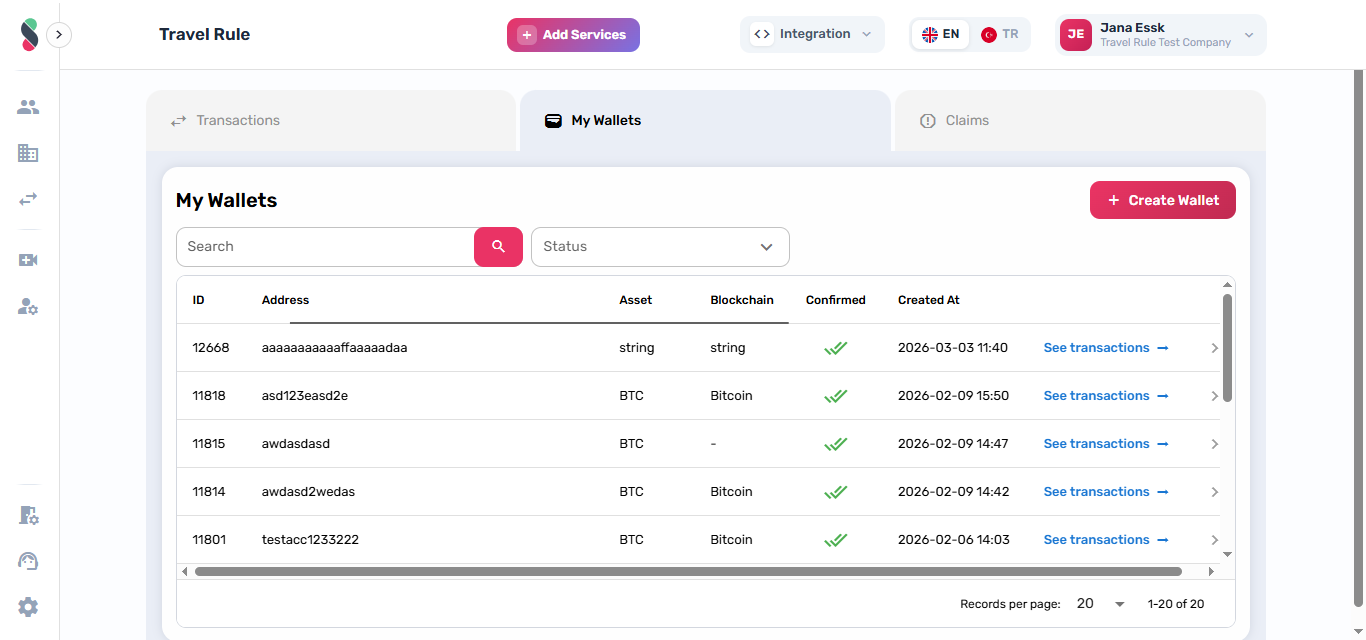
The My Wallets tab lists wallets and allows creation, deletion, and navigation to related transactions.
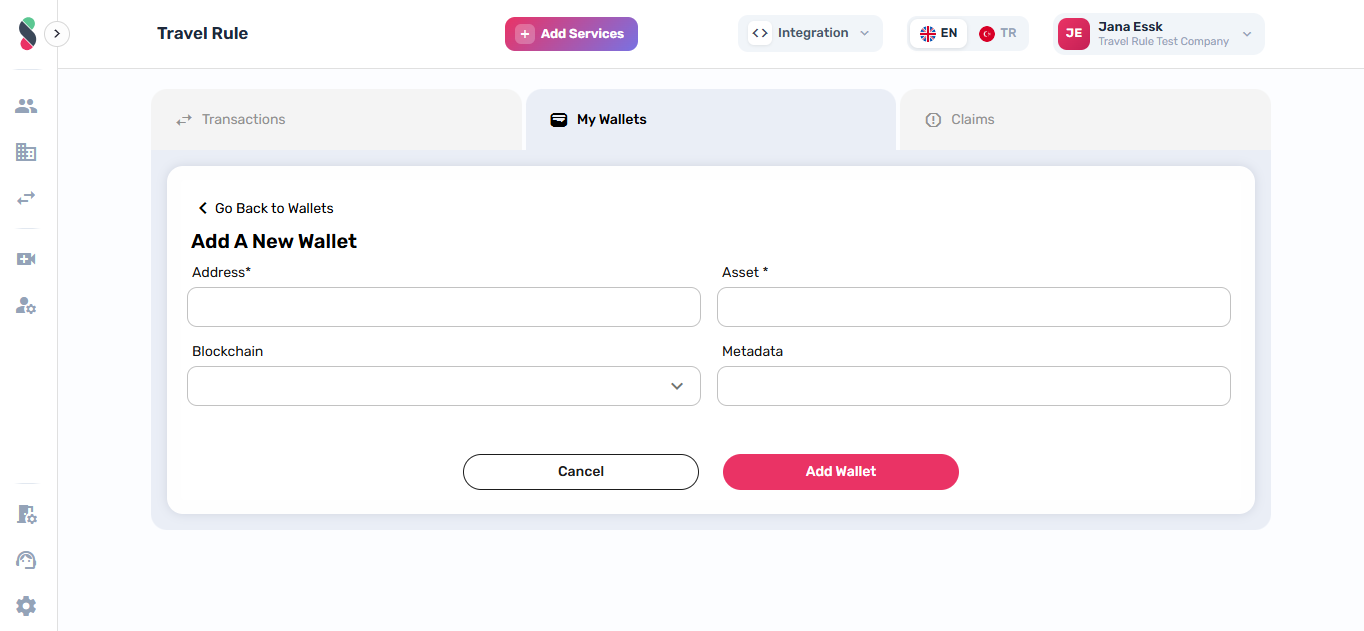
Create a Wallet
- Open the My Wallets tab.
- Click Create Wallet to open the wallet form.
See Related Transactions
- In the wallet list, click See Transactions.
- The Transactions tab opens with the wallet address pre-filled as a search query.
Delete a Wallet
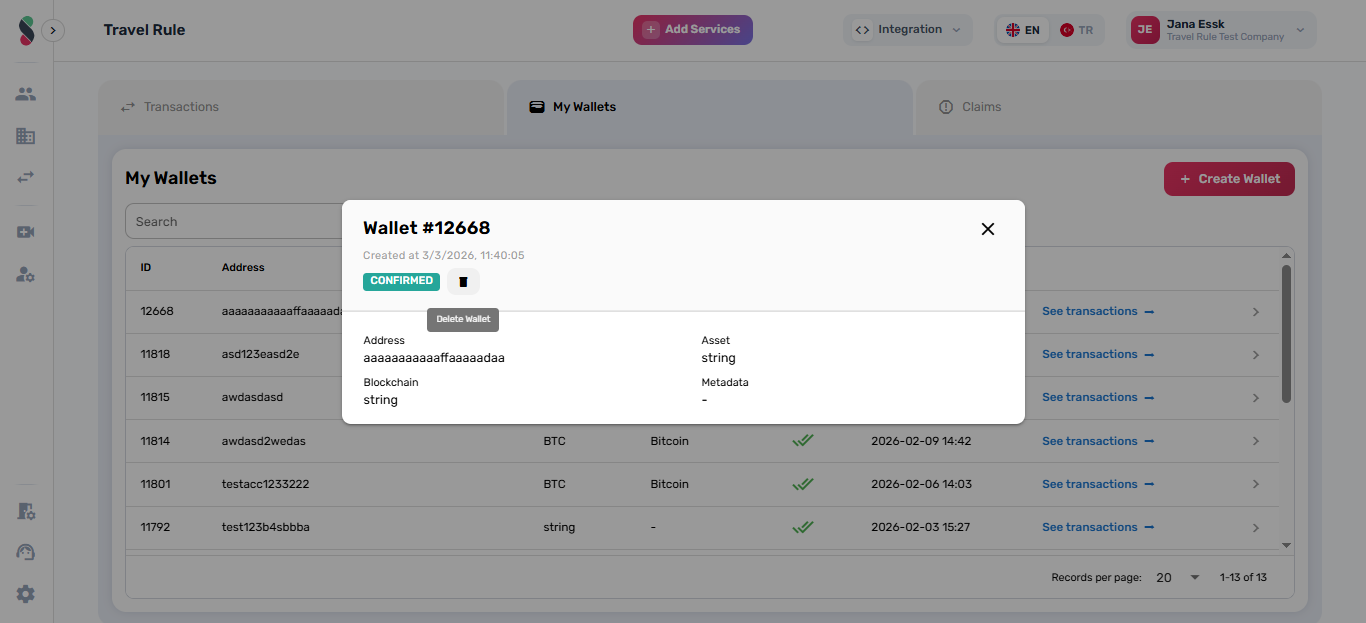
- Click a wallet row to open the wallet detail drawer.
- Click the Delete action (if enabled for your role).
Claims
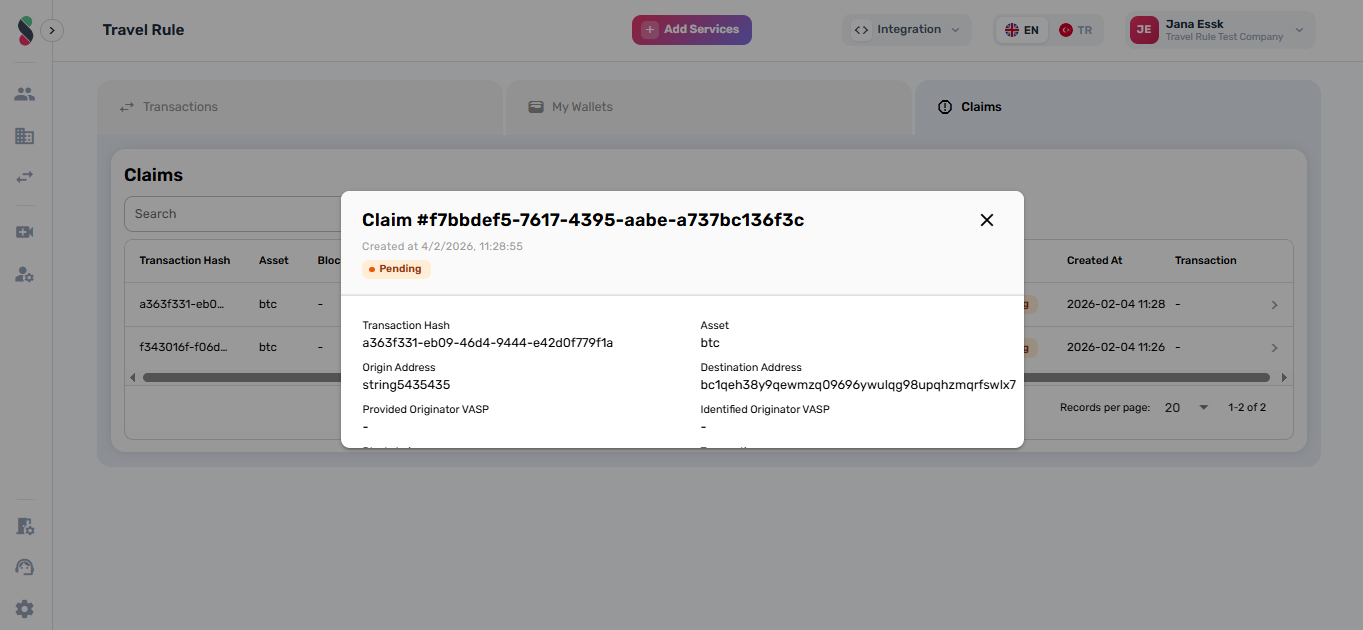
The Claims tab lists claim records linked to blockchain and VASP information.
- Open the Claims tab.
- Use Search and Status filters.
- Click a claim row to open the claim details drawer.