Additional Steps
This guide explains the optional extra steps that may appear during identity verification (KYC), depending on how the experience is set up for your business.
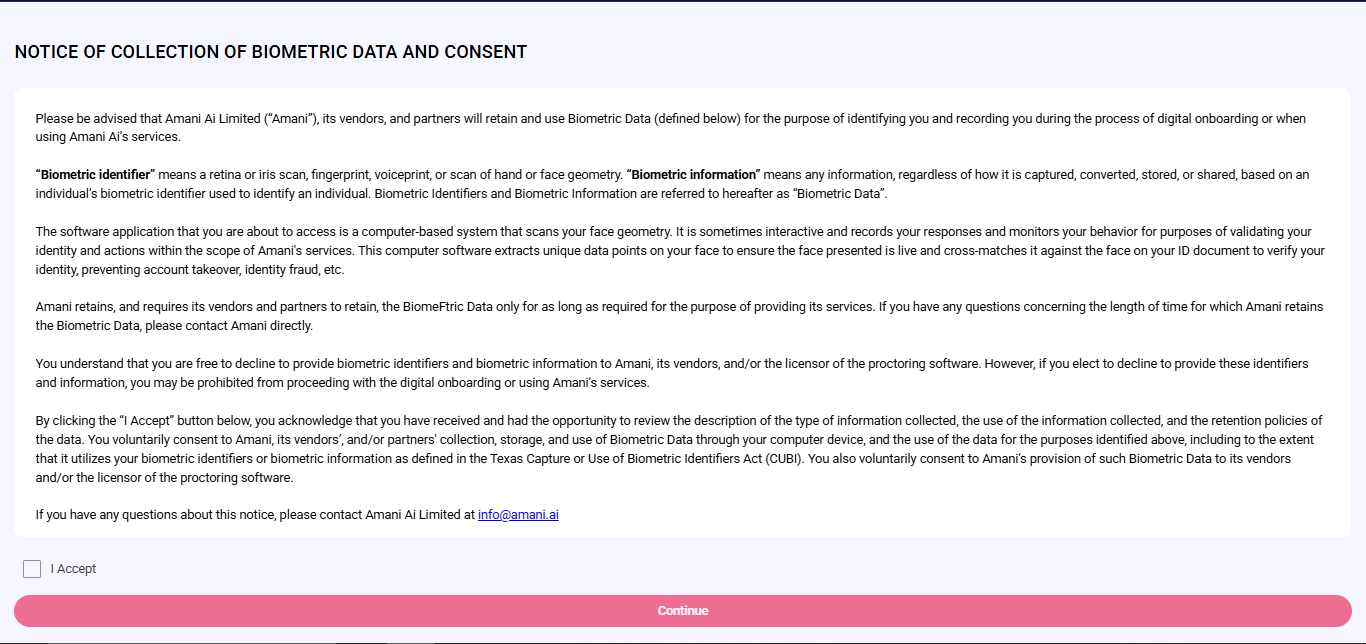
Terms and Conditions
- Purpose: A consent gate that appears when the business has enabled terms display.
- When you see this: At the start of your journey, before any verification steps.
- What you do: Scroll to the bottom of the page, check the acceptance box, and tap Continue.
- What happens next: The experience remembers your acceptance and moves you to the next required screen (profile information, questionnaire, email verification, phone verification, or step selection).
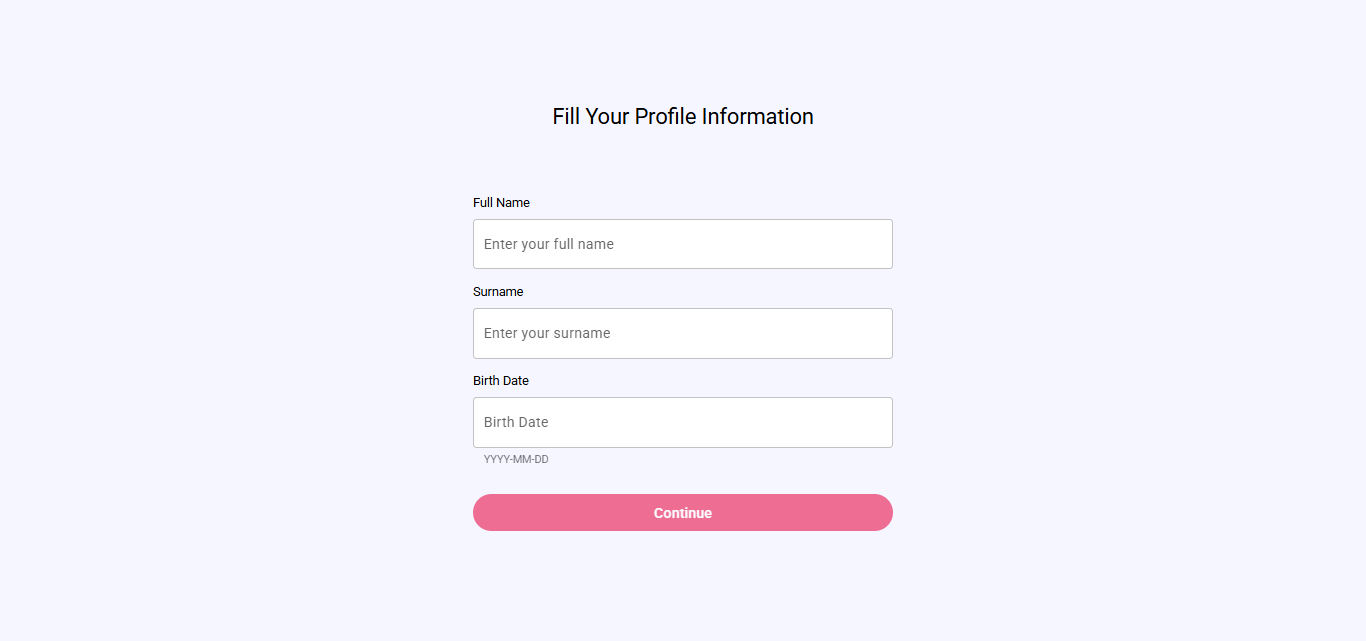
Initial Profile Form
- Purpose: Collect your basic personal information before document steps begin.
- When you see this: When your profile details have not yet been recorded.
- What you do: Enter your first name, last name, and date of birth, then tap Continue.
- What happens next: The experience calculates the next step and takes you there automatically.
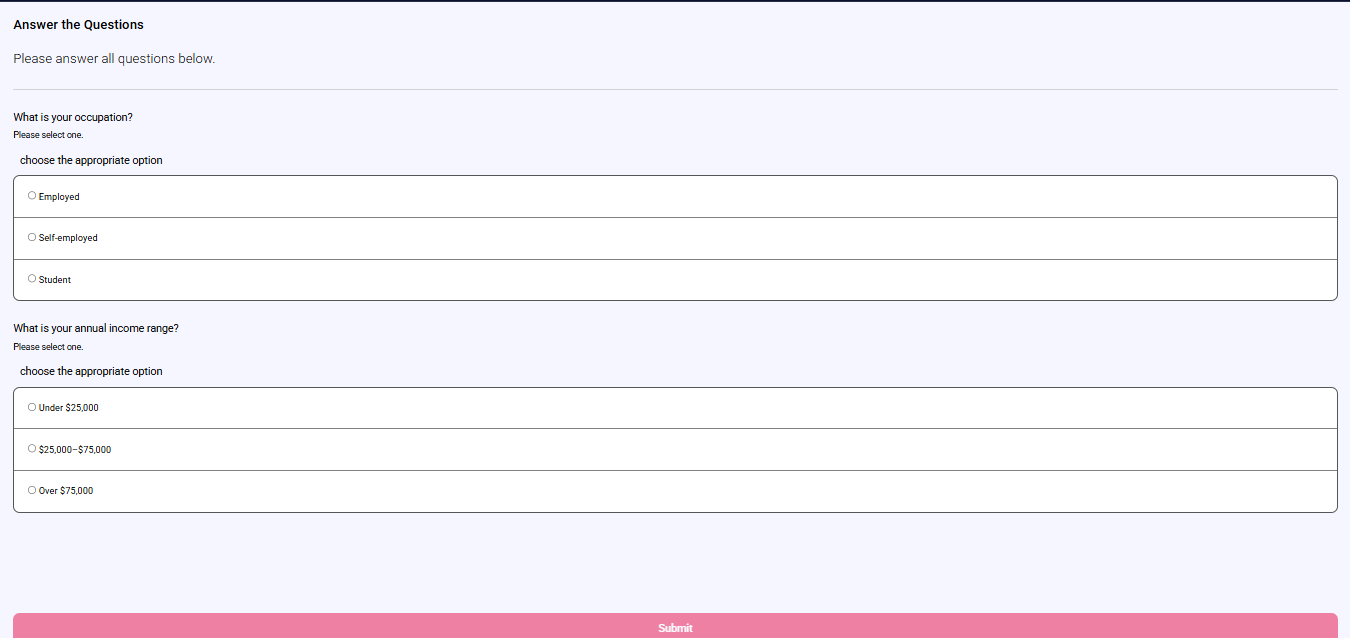
Questionnaire
- Purpose: Collect answers to compliance or business-specific questions.
- When you see this: When your journey includes a required questionnaire.
- What you do: Answer all the questions (which may include single choice, multiple choice, typed text, or number fields), then tap Submit.
- What happens next: You are taken to the next required screen.
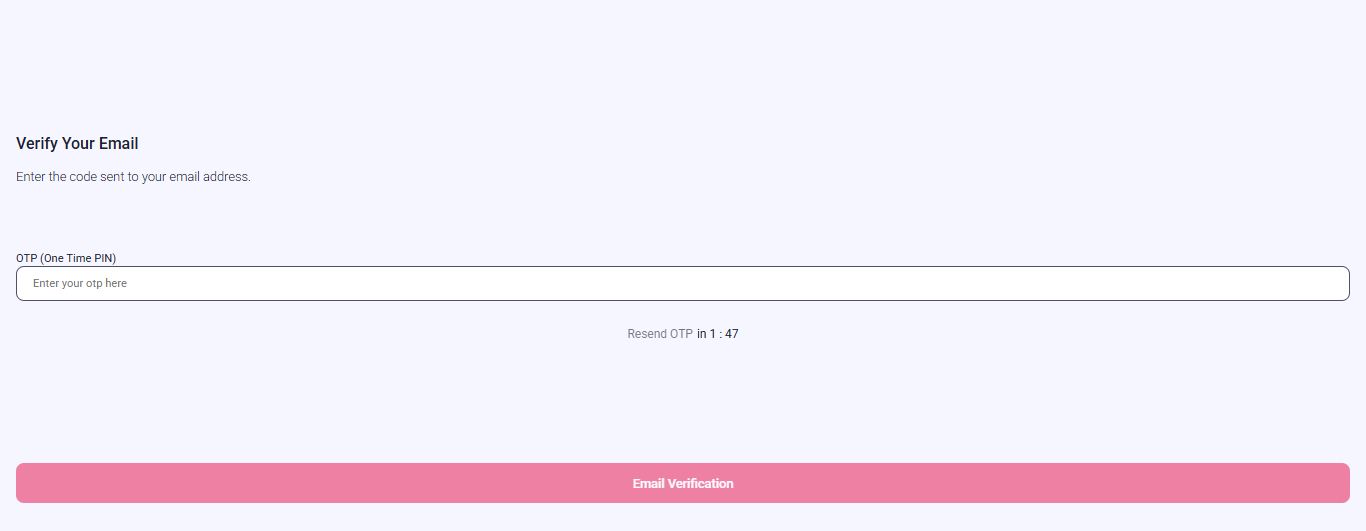
Email Verification
- Purpose: Confirm that you own the email address on file.
- When you see this: When email verification is a required step in your journey.
- What you do: Enter your email address, receive a one-time code (OTP) in your inbox, and enter that code to verify.
- What happens next: Once verified, you continue to the next required screen. A resend option is available after a short wait.
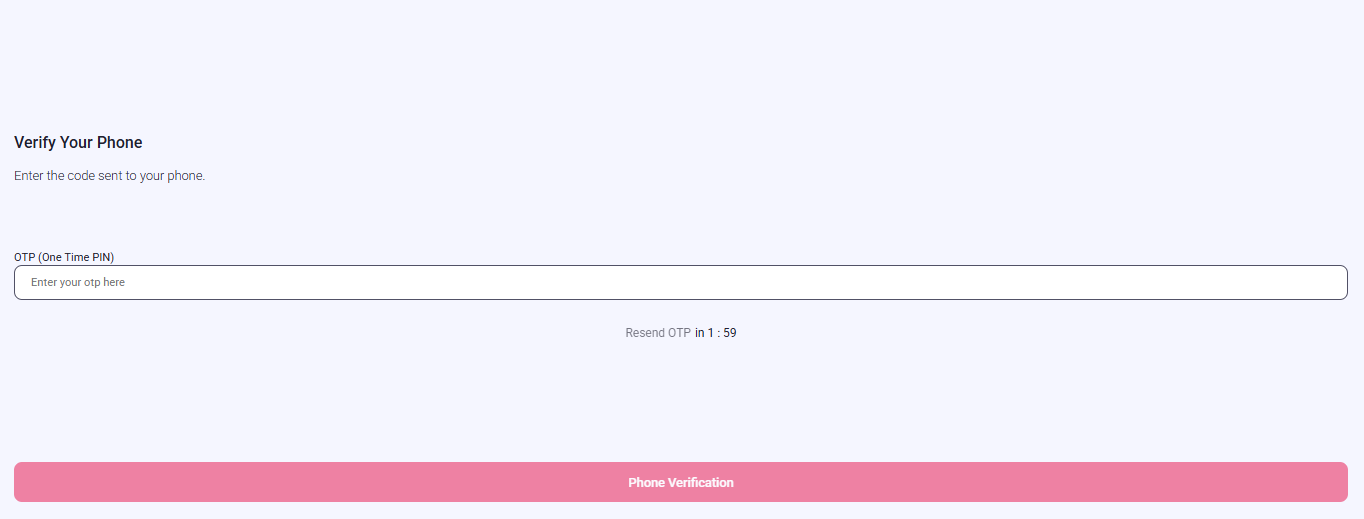
Phone Verification
- Purpose: Confirm that you own the phone number on file.
- When you see this: When phone verification is a required step in your journey.
- What you do: Enter your phone number (with country code), receive a one-time code (OTP) by SMS, and enter that code to verify.
- What happens next: Once verified, you continue to the next required screen. A resend option is available after a short wait.
Address (Proof of Address)
- Purpose: Collect a document that confirms where you live (for example, a utility bill or bank statement).
- When you see this: When you choose the Proof of Address step from the step list.
- What you do: Upload a PDF or image file, or tap the take-photo option to use your camera.
- What happens next: After a successful upload you return to the step list or move to the next required screen.

Signature
- Purpose: Collect your handwritten signature as consent for a contract.
- When you see this: When you choose the Signature step from the step list.
- What you do: Read the contract document displayed on screen, check the approval box, then draw your signature in the signature area and tap Save.
- What happens next: Your signature is submitted and you move to the next required screen or the completion screen.

note
These steps are enabled per business configuration and may not appear in every integration.
Flow Continuity
- Typical sequence on mobile: Terms and Conditions → Profile Form or Questionnaire or Email/Phone Verification → Step Selection.
- From the step list, Proof of Address and Signature each have their own screens before rejoining the main flow.
- All paths eventually lead to the Completion screen when every required step is done.