BioLogin (Legacy Login Route)
BioLogin (Legacy Login Route)
Overview
You complete a selfie-based login verification using an alternate entry screen.
User Journey (Step-by-step)
Route: /login
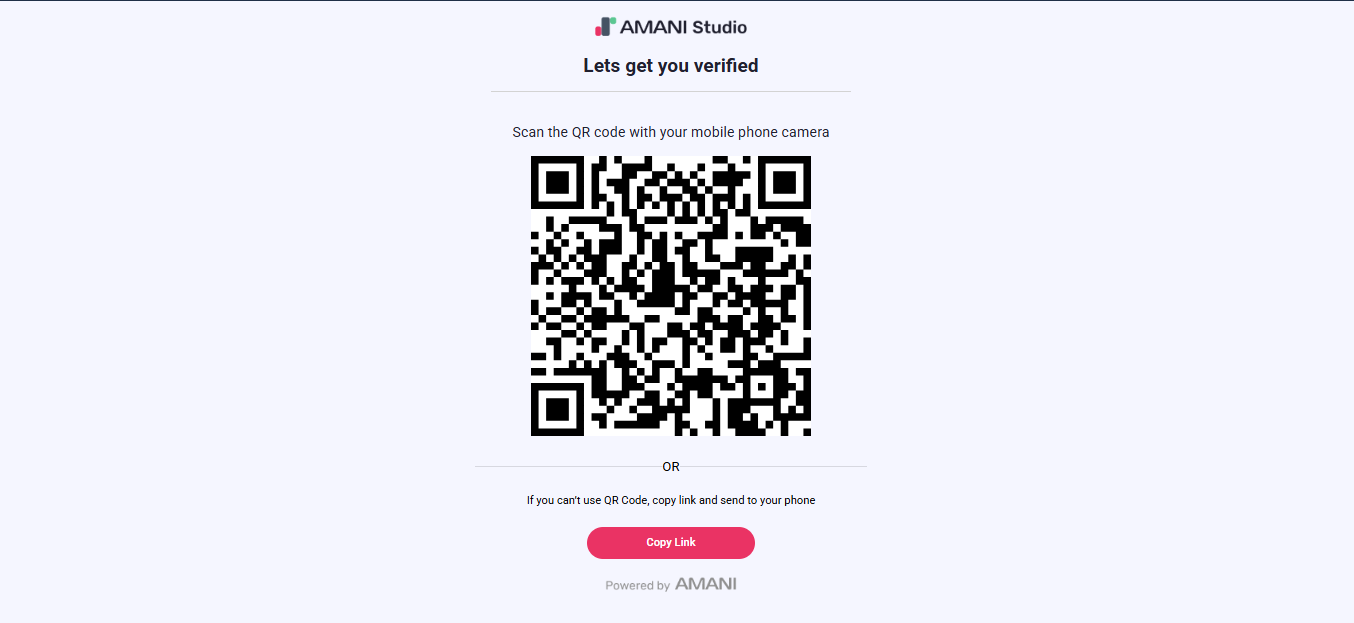
What you see:
- On desktop: a QR code with an option to copy the link.
- On mobile (in some cases): a camera capture screen for a selfie.
What you do:
- Desktop:
- Scan the QR code with your phone, or copy the link and open it on mobile.
- Mobile:
- Grant camera permission if asked.
- Capture a selfie.
What happens next:
- After capture, the selfie is submitted.
- If the result is successful, you go to the Completion screen.
- If unsuccessful, you remain on the login screen and can try again.
What you see:
- A dialog indicating success or failure.
- An OK button.
What you do:
- Tap OK.
What happens next:
- If successful, you proceed to the Completion screen.
- If unsuccessful, you return to the selfie capture screen on this same screen.
Route: /complete (success only)
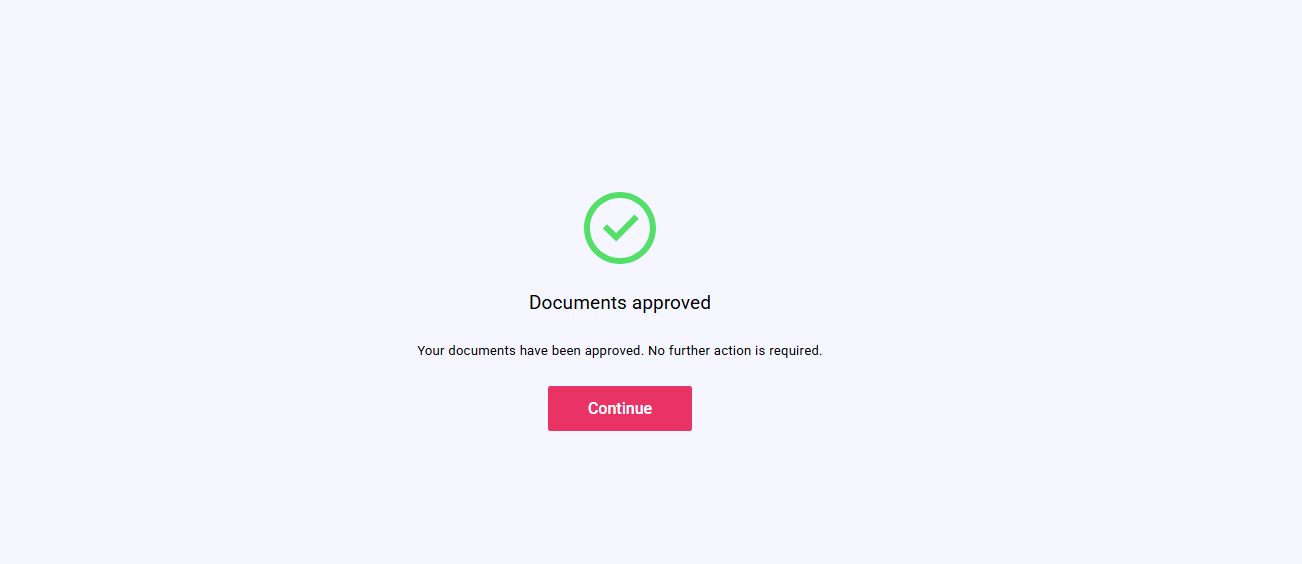
What you see:
- A completion status screen.
What you do:
- Tap Continue.
What happens next:
- You are redirected to the business return link with your status and any error codes.
Entry Conditions
- You open a BioLogin link that routes to the legacy login screen.
Exit Conditions
- Success routes to the Completion screen and then returns you to the business return link.
Branches
- Desktop QR handoff:
- The desktop login screen shows a QR code so you can continue on your phone.
- Mobile direct capture:
- The login screen can show the camera capture experience immediately on mobile.
- Failure:
- The result dialog indicates failure and returns you to the selfie capture state.
- Legacy completion signals (as-is):
- The experience may respond to external completion signals depending on how the session was started.