Entity Verification
The entity flow supports business or organization onboarding. Depending on the setup, it collects company documents, company information, or both.
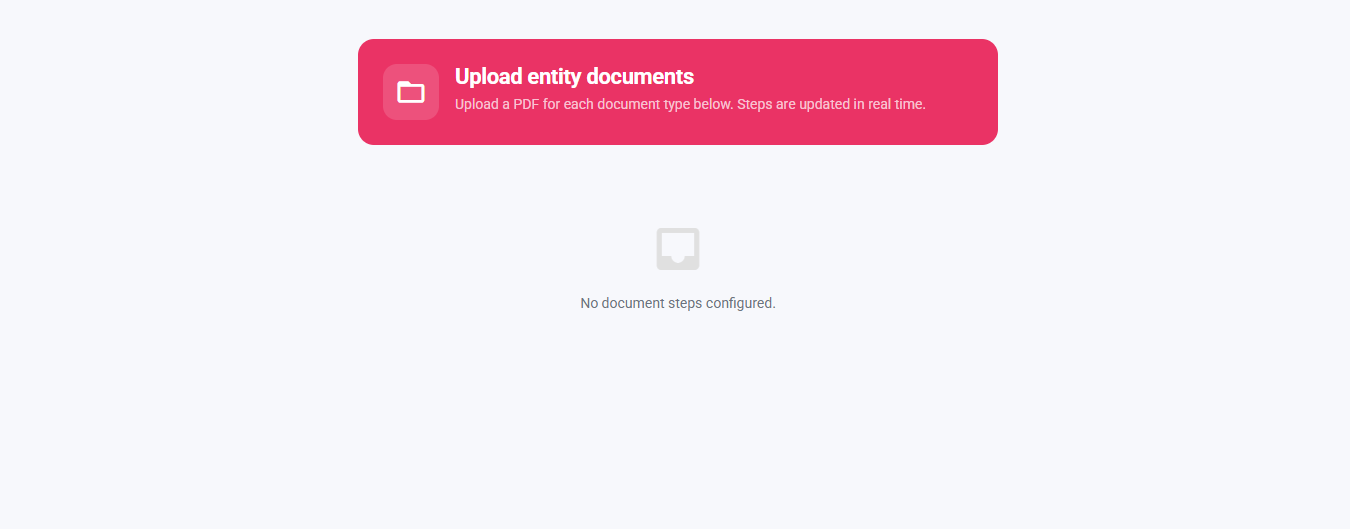
Screens
- Entity start screen (initialization and error handling)
- Entity document upload screen
- Entity information form screen
- Entity completion screen
Screen-by-Screen Flow
Entity Start Screen
- Purpose: Load the business configuration and decide which screen to show next.
- When you arrive here: You open an entity verification link, or the upload/info screen redirects back here to restart.
- What you see: A loading indicator, or an error message if startup fails.
- What happens next:
- If the link was set up for information entry → entity information form screen
- Otherwise → entity document upload screen
Entity Start Screen Details
- Reads session and link settings to identify the business and entity.
- Downloads business configuration and entity data from our servers.
- Decides the next screen from the link settings.
Error States
If startup fails, one of the following error messages appears with a retry option:
- Company not found
- Configuration not available
- Network connection error
- Unknown error
Entity Document Upload Screen
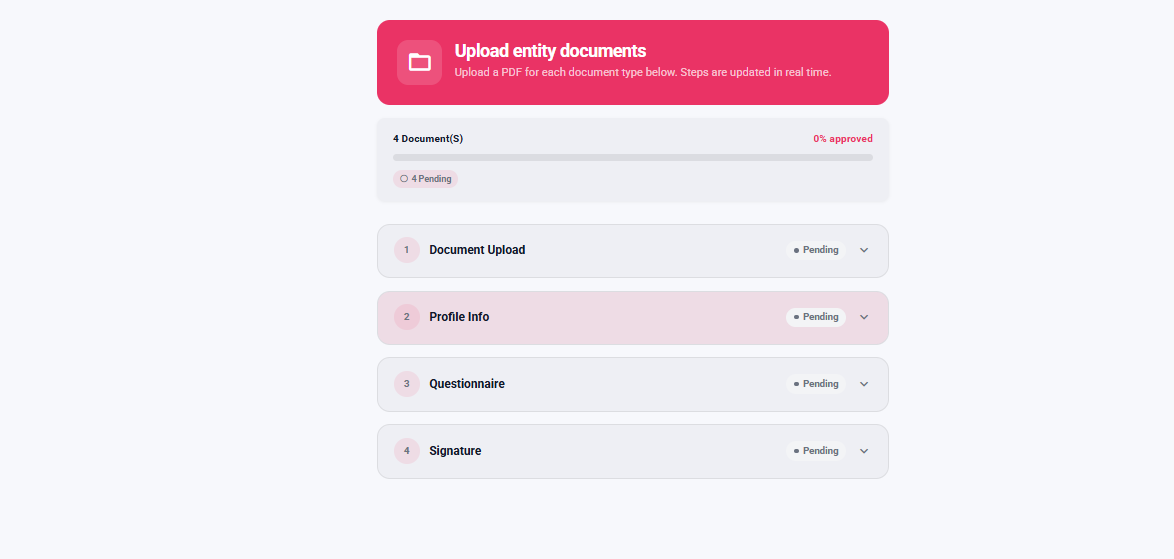
- Purpose: Collect and submit required company documents one by one.
- When you arrive here: From the entity start screen (default path).
- What you do: Expand a pending step, upload a PDF file, and monitor the status. Repeat for each required document.
- What happens next: When all required steps reach an approved or reviewed status, you are taken to the entity completion screen.
Key details:
- Each step shows its current status: pending, processing, pending review, approved, or rejected.
- Only PDF files are accepted.
- Status updates happen automatically in the background.
Entity Information Form Screen
- Purpose: Collect and save editable company details.
- When you arrive here: From the entity start screen when the link is set up for information entry.
- What you do: Fill in or review company fields (name, address, registration details, country, and any additional fields), then tap Save.
- What happens next: After a successful save you are taken to the entity completion screen in information mode.
Entity Completion Screen
- Purpose: Show the final success state and exit the entity journey.
- When you arrive here: After all documents are approved or reviewed, or after the information form is saved.
- What you do: Tap Continue or Close.
- What happens next: Redirects to the business return link if one is set; otherwise the window closes.
note
The entity screens handle their own startup and do not use the standard identity verification (KYC) start behavior.
Flow Continuity
- Document upload path: Entity start → document upload → entity completion
- Information entry path: Entity start → information form → entity completion
- If you refresh mid-journey, the upload or info screen may send you back to the entity start screen to restart.