Entity Document Upload
Entity Document Upload
Overview
You upload the required company or entity documents one by one until the submission is complete.
User Journey (Step-by-step)
Route: /entity/upload
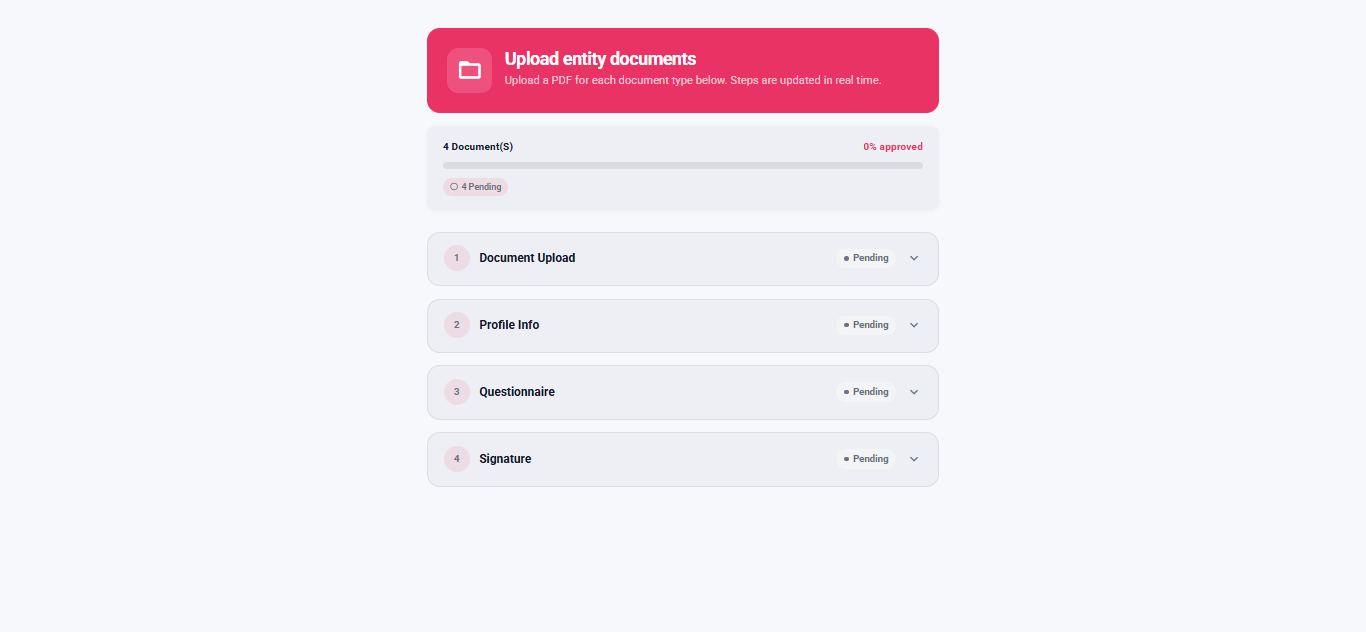
What you see:
- A list of document upload steps.
- A progress indicator showing how many steps are approved and what is still pending.
- For each step, an area to click or drag and drop a PDF file.
- Status messages for each step (pending, uploaded, processing, approved, rejected, pending review).
What you do:
- Expand a step if needed.
- Upload a PDF for that step by clicking or dragging a file into the upload area.
- Repeat for each required step.
What happens next:
- When all required steps are considered complete (approved, pending review, or uploaded), you are taken to the entity completion screen.
Route: /entity/complete (automatic after completion)

What you see:
- A completion message and a Continue button.
What you do:
- Tap Continue.
What happens next:
- You are redirected to the business return link, or the window closes.
Entry Conditions
- You are routed to the entity upload screen after a successful entity session startup.
Exit Conditions
- When all completion conditions are met, you go to the entity completion screen.
Branches
- Missing entity session context (for example after a page refresh):
- You may be sent back to the entity start screen to re-initialize.
- PDF-only requirement:
- If you try to upload a file that is not a PDF, the step shows an error and you remain on the upload screen.
- Status changes over time:
- A step can move between pending, uploaded, processing, pending review, approved, or rejected as our servers review the submission.
- The overall journey can be considered complete even if a step is still "uploaded" rather than fully approved, depending on the business configuration.