Video Call Verification
Video Call Verification
Overview
You join a live video call to complete verification with a remote agent.
User Journey (Step-by-step)
Route: /call
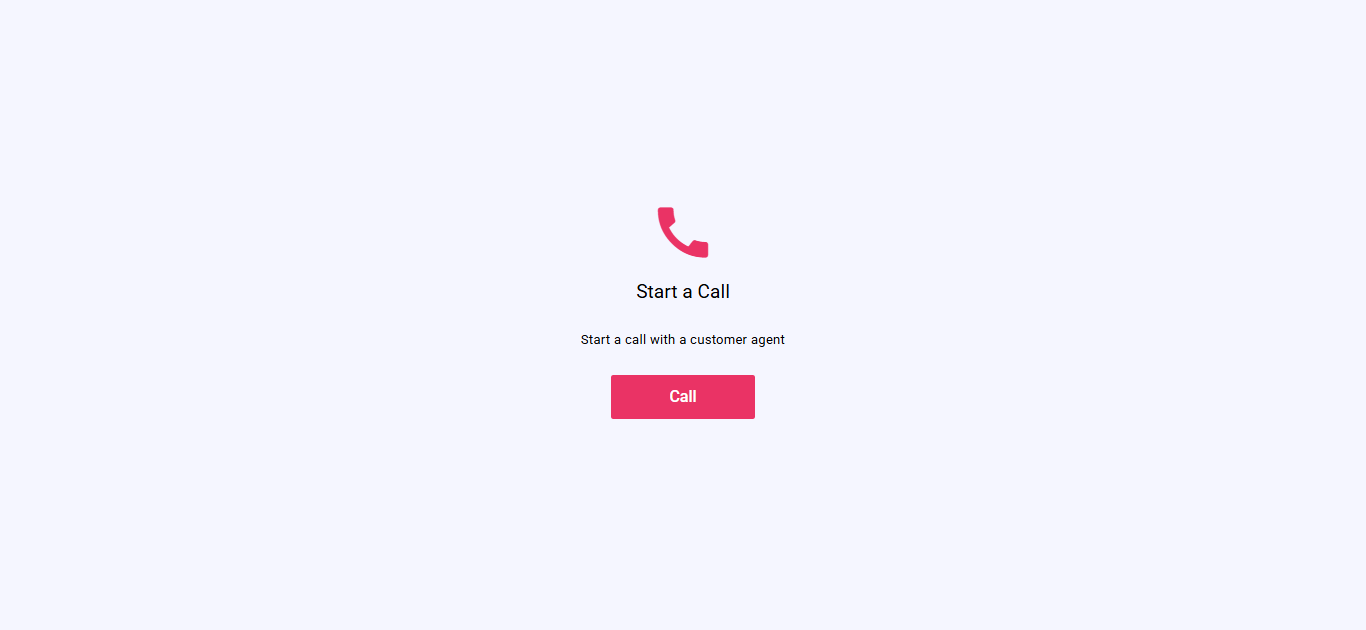
What you see:
- A start screen prompting you to begin a call.
What you do:
- Tap Call to start.
What happens next:
- You are taken into the live call experience.

What you see:
- The other participant's video (or a waiting screen until they join).
- Your own camera preview.
- Controls for microphone, camera switch, and ending the call.
What you do:
- Wait for the other participant to join.
- Use controls as needed:
- Toggle your microphone
- Switch camera (may require confirmation)
- End the call when finished
What happens next:
- When the call ends, you either go to the Call Completion screen or stay on the call screen with a status.
Route: /call-complete (conditional)
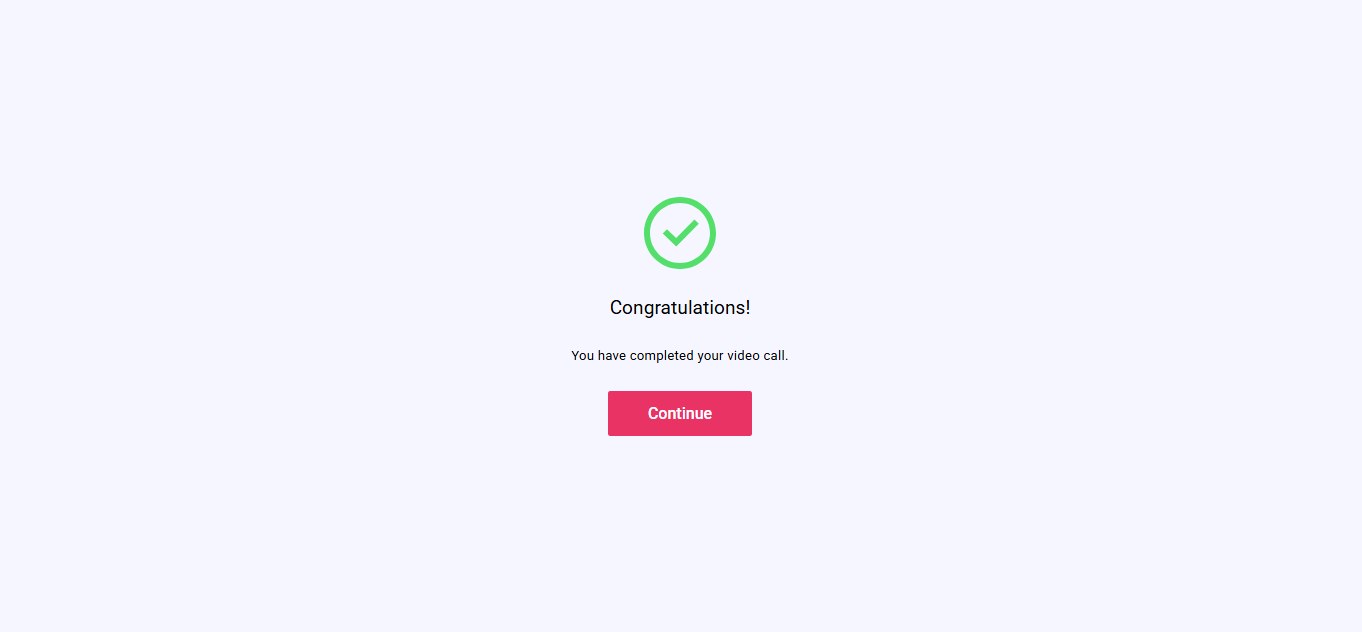
What you see:
- A message that the call is completed.
- A Continue button.
What you do:
- Tap Continue.
What happens next:
- You are redirected to the business return link.
Entry Conditions
- Your verification journey requires a video call.
Exit Conditions
- Approved or completed call — you go to the Call Completion screen, then to the business return link.
- Other end states — you stay on the call screen with a status indicator.
Branches
- Call not answered within a timeout:
- The call ends and you remain in the call journey with an error or status.
- The other participant ends the call:
- You go to the Call Completion screen if approved, otherwise the call screen shows a status.
- You end the call manually:
- If approved, you go to Call Completion; otherwise the call screen shows a status.