KYC Flow
This page explains how the verification tool (SDK) decides which screen to show next and guides the user through the full identity verification (KYC) journey.
How the Experience Starts
When the user opens the verification link, the tool reads the link settings, downloads the business configuration from our servers, and loads the user's profile and required steps. It then decides which screen to show first.
- If all steps are already completed, the user is taken directly to the Completion screen.
- Protected screens require a valid access token and identifiers; missing values send the user back to the start.
Screen-by-Screen Flow
Start Screen (Entry)
- Purpose: Entry point for all standard identity verification (KYC) journeys.
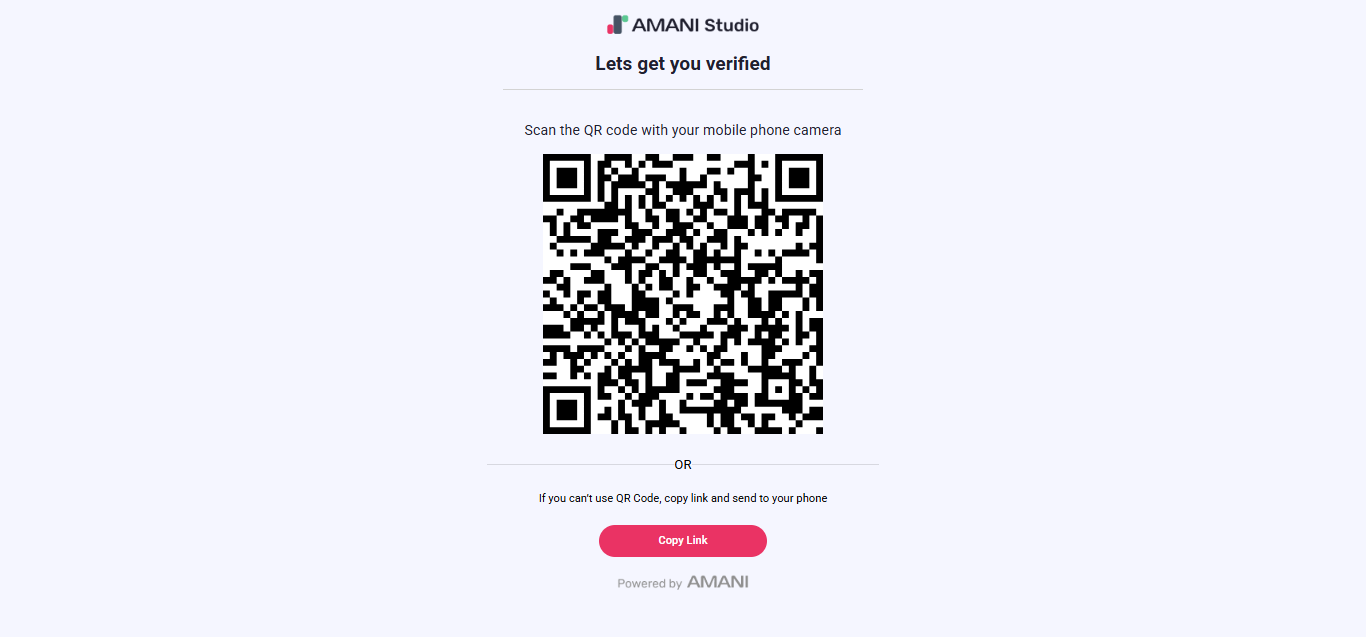
- On desktop: Shows a QR code and a copy-link option so the user can continue on their phone.
- On mobile: Automatically moves to the next required screen after loading.
- Next screen:
- If Terms and Conditions are enabled → Terms and Conditions screen
- If a video call session is pending → call screen
- If BioPay link settings are present → BioPay screen
- Otherwise → whichever required step comes next (profile form, email verification, phone verification, questionnaire, or step selection)
Step Selection Screen
- Purpose: Shows all pending and completed identity verification (KYC) steps and their current status.
- When you arrive here: As the default screen after setup steps, or after finishing or returning from a step.
- What you do: Select an available step card.
- Next screen:
- Step with multiple document types → document type selection screen
- Proof of Address step → address upload screen
- Signature step → signature screen
- Single document step → camera capture screen
- All steps complete → Completion screen
Document Type Selection Screen
- Purpose: Lets the user choose a country-specific document variant for the selected step.
- When you arrive here: You selected a step that offers more than one document type.
- What you do: Optionally select a country, then select one document type.
- Next screen: Camera capture screen. If the selection context is missing, you are sent back to the step selection screen.
Completion Screen
- Purpose: Final screen before the user returns to the business website.
- When you arrive here: All required steps are finished, or completion is confirmed by a live update from our servers.
- What you do: Review the completion status and tap Continue.
- Next screen: Redirected to your business return link with status, customer identifier, and any error codes.
Desktop vs Mobile
Desktop
- Stays on the QR code screen so the user can scan it with their phone.
- A copy-link button is also available.
Mobile
- Automatically moves into the active journey once loading is complete.
- If Terms and Conditions are enabled, that screen appears first; otherwise the next required step is shown.
How the Next Screen Is Decided
The tool looks at the first required step that is not yet finished and picks the matching screen:
- Profile information required → profile form screen
- Email verification required → email verification screen
- Phone verification required → phone verification screen
- Questionnaire required → questionnaire screen
- Document steps or anything else → step selection screen
When Is the Journey Considered Complete?
The journey is complete when every required step has one of these statuses: Approved, Automatically Approved, or Pending Review. Any step with a different status keeps the journey active.
Automatic Redirects
- A user with a valid session who opens a protected screen without being logged in is sent back to the start.
- A user who has already completed verification and tries to open other screens is sent to the Completion screen.
- A user who has not completed verification and tries to open the Completion screen is sent back to the start.
- Any unrecognized link path is automatically redirected to the start.
Live status updates from our servers mean the experience can move to the next or final screen automatically without needing a manual refresh.