Capture and Upload
This page explains how document photos are taken, reviewed, and submitted during an identity verification (KYC) step.
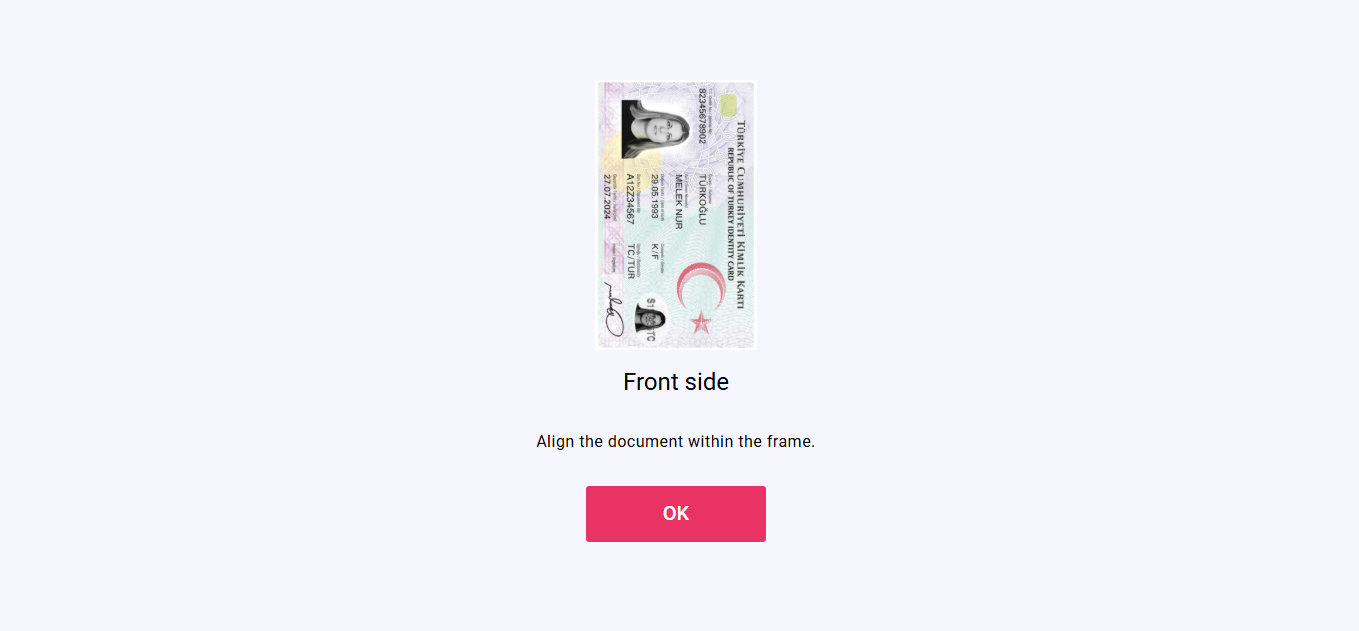
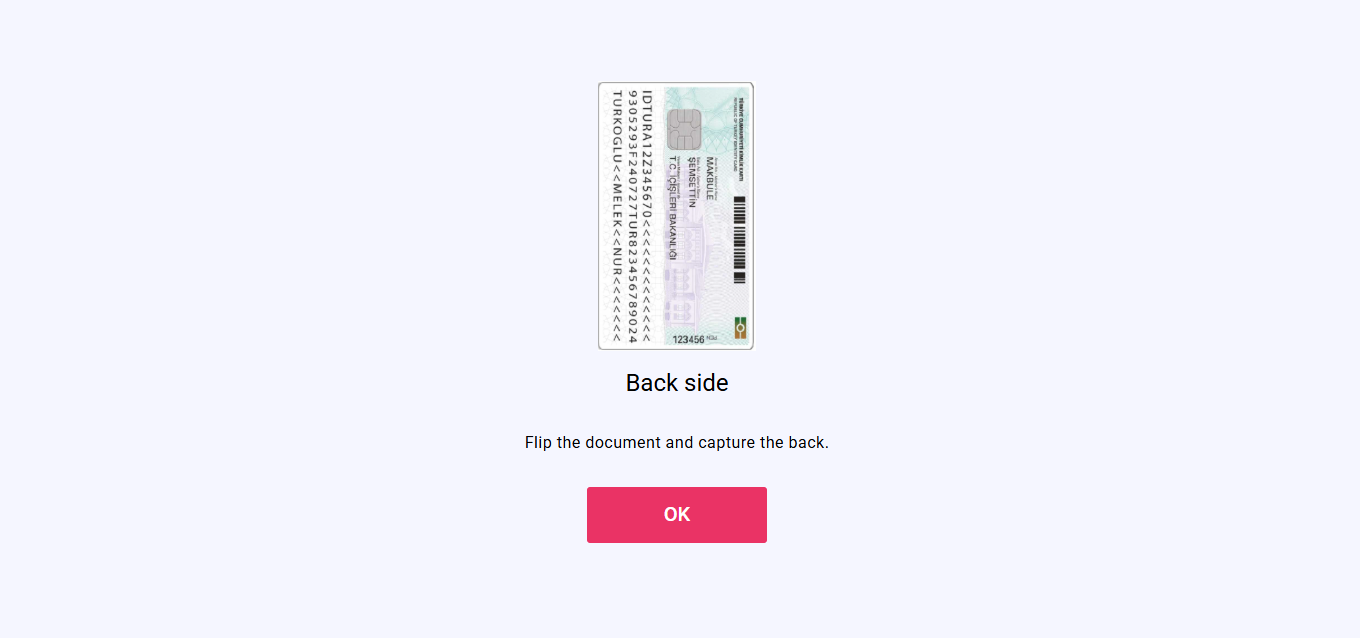
Screen-by-Screen Flow
Camera Capture Screen
- Purpose: Collect document photos for the currently selected step.
- When you arrive here: After selecting a step or a document type.
- If the step context is missing: You are sent back to the step selection screen.
- What you do: Take a photo with your camera, or upload a file if the camera is not available.
- Next screen: Confirmation screen after each capture.
Camera Startup
- The app requests camera access from your browser.
- It lists available cameras and picks front or back based on the document type.
- If you have more than one camera, a switch button appears.
- Camera and location sharing (geolocation) work only on secure (HTTPS) connections.
On-Screen Guidance
- A framing guide appears sized to the expected document shape.
- Some document types show additional visual hints (for example a chip or QR symbol).
- A face animation guide appears for selfie and certain ID captures.
- A blurriness warning appears for non-selfie captures if the image is unclear.
Automatic Capture
- Some document types support automatic capture: the app detects the document in frame and captures it without you needing to tap.
- A quality check runs before the image is accepted to avoid blurry results.
File Upload Fallback
If the camera cannot be accessed (for example due to browser restrictions or an insecure connection):
- A file picker opens when you tap the capture button.
- You select an image from your device.
- The selected file is sent to the confirmation screen just like a camera photo.
Confirmation Screen
- Purpose: Let you review the captured image before it is submitted.
- When you arrive here: Immediately after a camera capture or file selection.
- What you do:
- Review the image preview.
- Tap Try Again to discard the image and return to the camera.
- Tap Confirm to accept and continue.
- Next screen:
- If the document needs more pages → back to the camera capture screen.
- If all pages are done → the image is submitted and you are taken to the next required step (step selection, an optional step, or the Completion screen).
What Gets Submitted
When you confirm the image, the app sends the photo, your customer identifier, the document type, device information, and (if enabled) your location sharing data. The step status immediately changes to "Processing" while our servers review the submission.
Flow Continuity
- You arrive at the camera screen from: step selection or document type selection.
- You move through: camera screen → confirmation screen.
- After submission you are sent to: step selection, an optional step screen, or the Completion screen depending on what is still required.
warning
Camera and file upload access depend on your browser's permissions and whether the connection uses HTTPS.